
How We Turned a Headless VPS Into a Full Remote Desktop (And Why We Chose NoMachine Over RDP)
If you’ve ever rented a VPS (Virtual Private Server), you know the drill: you get a login, a terminal, and… that’s about it. No desktop. No windows. No icons. Just a blinking cursor waiting for commands.
For many people, that’s perfect. But sometimes you want more — a full desktop you can click around in, open apps, manage files visually, or run software that simply works better with a graphical interface.
That’s exactly the situation we found ourselves in. And the journey from “just a terminal” to “a full remote desktop” turned out to be a surprisingly interesting adventure.
Let’s walk through what we did, why we did it, and how we finally got everything working smoothly.
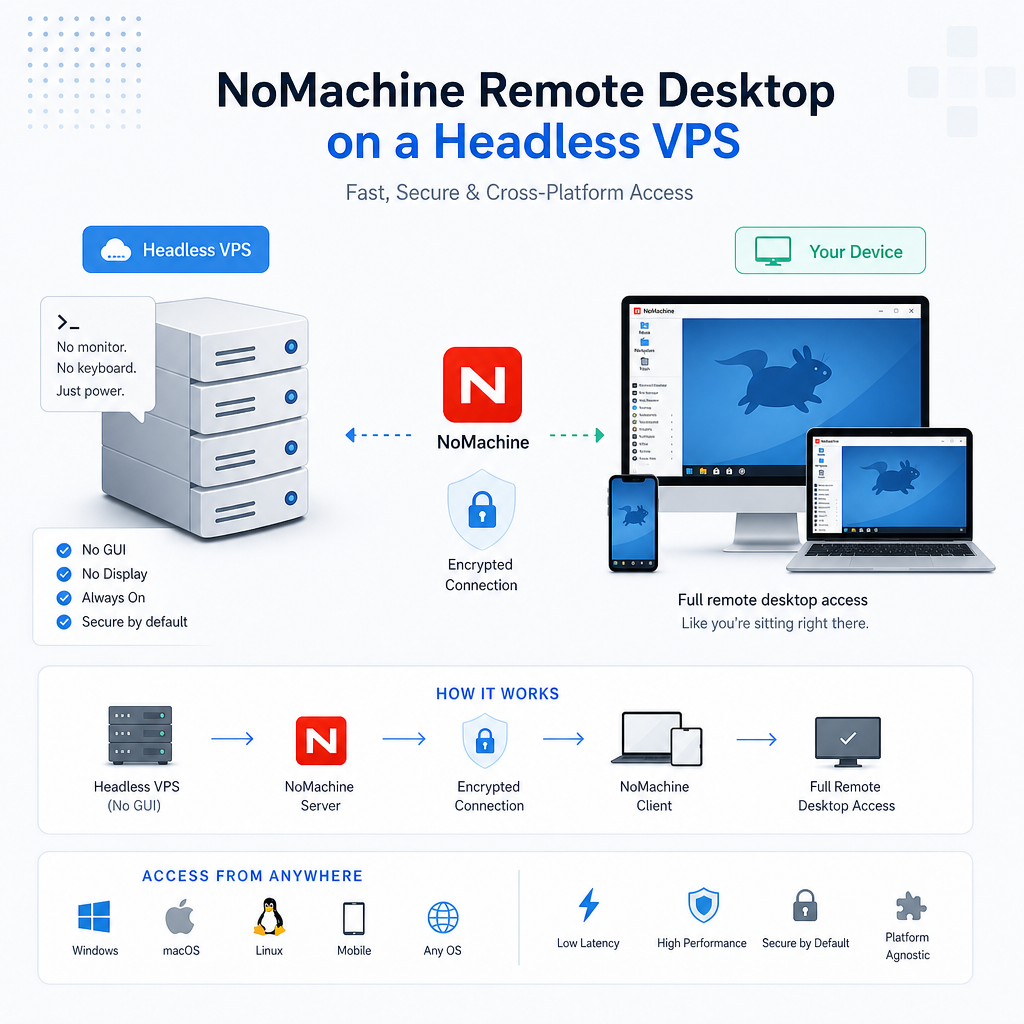
Why We Needed a Desktop on a VPS in the First Place
Most VPS setups are designed for servers — websites, databases, automation, background tasks. They don’t come with a desktop environment because desktops use more resources and aren’t usually needed.
But sometimes you do need one:
- You want to run desktop apps remotely
- You want a familiar point‑and‑click interface
- You want to manage files visually
- You want to use tools that aren’t built for command‑line
- You want a “real computer” experience, just hosted somewhere else
In our case, we wanted a lightweight desktop to make configuration easier, run GUI apps, and manage local AI tools visually. That meant we needed to install a desktop environment (XFCE) and a way to access it remotely.
That’s where the choice of remote desktop software comes in.
Why We Chose NoMachine Instead of Windows RDP
Most people have heard of Windows Remote Desktop (RDP). It’s built into Windows, it’s familiar, and it works well — on Windows. But when you’re dealing with Linux, especially a headless Linux VPS, RDP becomes a lot less appealing.
Here’s why NoMachine was the better choice:
1. NoMachine is platform‑agnostic
It works on:
- Windows
- macOS
- Linux
- Raspberry Pi
- ARM devices
If you switch computers or operating systems, NoMachine comes with you.
2. It’s optimized for speed
NoMachine is built around the NX protocol, which is designed for:
- low latency
- high compression
- smooth video
- responsive desktops
Even on a VPS with no GPU, NoMachine feels snappy.
3. It handles Linux desktops gracefully
RDP expects a Windows‑style environment. NoMachine expects… well, anything.
It works with:
- XFCE
- KDE
- GNOME
- MATE
- custom desktops
- virtual displays
- headless servers
That flexibility matters when you’re building a desktop from scratch.
4. It doesn’t require a full display manager
RDP often needs a login manager like LightDM or GDM. NoMachine can attach directly to a running desktop session.
That turned out to be a huge advantage.
The Challenge: NoMachine + Headless VPS = Black Screen
Once we installed XFCE and NoMachine, we connected… and saw nothing.
Just a black screen.
No errors. No warnings. No clues.
This is a classic problem on headless servers: there’s no display for NoMachine to attach to. So it tries to create its own — and in our case, it kept creating a root‑owned desktop session, which NoMachine cannot display.
We tried several approaches:
- Installing LightDM (a display manager)
- Letting NoMachine create virtual desktops
- Manually launching XFCE
- Tweaking NoMachine configs
Each attempt got us closer, but nothing solved the root issue: NoMachine needs a running desktop session owned by the user, not root.
So we changed strategies.
The Breakthrough: A Persistent Virtual Desktop Using Xvfb
Instead of letting NoMachine create a desktop, we created our own — a virtual desktop that runs all the time, even when nobody is connected.
We used Xvfb, a virtual framebuffer that acts like a pretend monitor. It gives Linux a display even when no physical hardware exists.
Then we launched XFCE inside that virtual display.
Finally, we wrapped the whole thing in a systemd service so it starts automatically at boot and stays running forever.
Here’s the magic:
- Xvfb creates display
:1 - XFCE runs inside display
:1 - NoMachine attaches to display
:1 - No more root sessions
- No more black screens
- No more guessing
It’s stable, predictable, and works every time.
Why This Approach Works So Well
This setup gives you:
A real desktop
XFCE runs continuously, just like a normal computer.
A real display
Xvfb provides a virtual monitor that apps can draw on.
A reliable connection
NoMachine simply attaches to the existing desktop instead of trying to create its own.
A platform‑agnostic experience
You can connect from Windows, macOS, Linux — whatever you use.
A lightweight footprint
XFCE + Xvfb uses very little RAM and CPU.
A familiar environment
You get windows, icons, menus, and apps — just like a local machine.
The Final Result: A Smooth, Always‑On Remote Desktop
After cleaning up unnecessary packages, removing LightDM, resetting NoMachine configs, and creating a persistent desktop service, everything fell into place.
Now:
- The VPS boots
- Xvfb starts
- XFCE launches
- NoMachine attaches
- The desktop appears instantly
No more black screens. No more root sessions. No more surprises.
Just a clean, fast, reliable remote desktop — accessible from anywhere.
If You’re Considering Doing This Yourself
You don’t need to be a Linux expert. You don’t need to understand display servers. You don’t need to know what Xvfb stands for.
All you need is:
- a VPS
- a lightweight desktop (XFCE)
- Xvfb
- NoMachine
- a simple systemd service
And you’ll have a full remote desktop you can use from any device.